


How to Protect Your Files from Ransomware Attacks
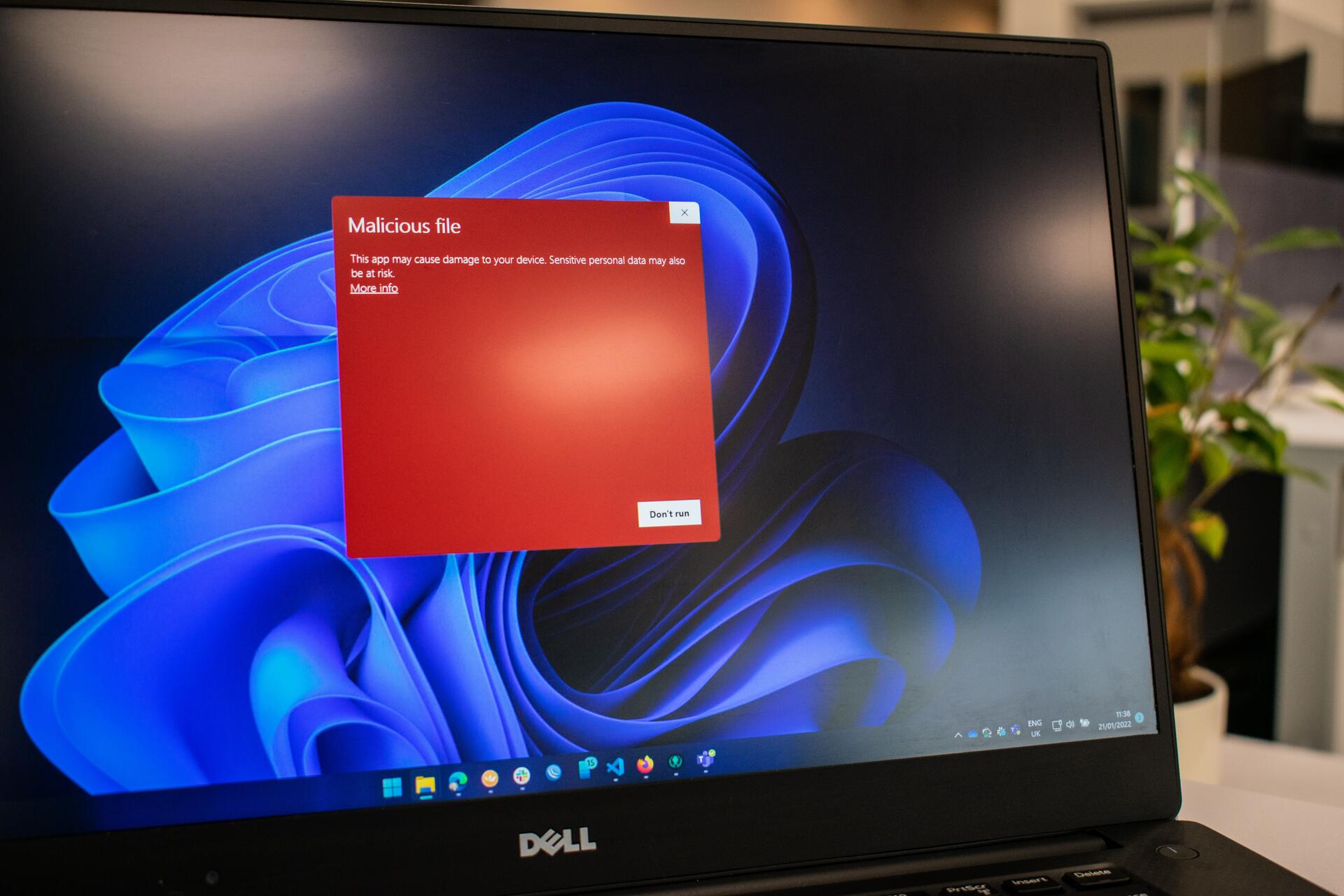
One of the most dangerous types of malware out there is ransomware. This malicious software encrypts your files, making them inaccessible unless you pay a ransom to the attacker. In essence, your files are being held hostage until you give in to the demands.
Protecting yourself against ransomware involves more than just avoiding suspicious websites and downloads. Advanced antivirus programs now come equipped with features that prevent unauthorized apps from altering files in folders commonly targeted by ransomware. Even Microsoft Defender, the built-in antivirus software for Windows, has these capabilities. However, these additional security measures need to be manually enabled by the user, unlike third-party antivirus programs that activate them automatically.
Ensuring Ransomware Protection in Windows
Step One: Access Windows Security
To begin securing your files from ransomware attacks, open the Windows Security app on your PC. You can do this by pressing Alt + Spacebar, typing in “windows security,” and hitting Enter. Alternatively, you can search for it in the Start Menu or through the Settings app.
Step Two: Enable Ransomware Protection Settings
Within the Windows Security app, navigate to Virus & threat protection. Click on the option to Manage ransomware protection at the bottom of the screen. Turn on Controlled folder access, which limits app access to certain default folders on your PC. You can also customize this list by adding additional folders as needed.
Step Three: Verify OneDrive Connectivity
In addition to restricting access to files, it is crucial to have reliable backups in place. Being logged into OneDrive ensures that Windows automatically backs up your data. You can confirm this feature by checking Ransomware data recovery under Ransomware protection settings.
Keeping Your Files Secure
While online backups are convenient, the safest way to protect your files from ransomware is by maintaining offline backups. Remember, having a single copy of your data is not sufficient for complete protection. Always make sure to have a backup stored offline in addition to any cloud-based backups.
To learn more about activating ransomware protection on Windows, visit PCWorld’s guide on the topic.