


Running Gmail through the cloud offers several advantages. You can easily access your emails from any device connected to the internet, without the need to install additional software. Additionally, your messages are securely backed up on Google’s servers, ensuring their safety in case of any device issues.
However, there may be instances where having local copies of your Gmail emails becomes necessary. Whether you anticipate being offline or simply prefer the convenience of a local email client, it’s crucial to have options for downloading your inbox and archive.
It’s important to note that downloading your Gmail emails locally won’t impact the cloud copies stored on Google’s servers unless you delete them or close your account.
## Downloading Gmail emails using a local email app
If you utilize an email application on your computer, such as Outlook or Apple Mail, you can access your Gmail inbox through the IMAP protocol (Internet Message Access Protocol).
IMAP keeps a selection of recent messages synchronized between your local machine and the cloud. Any changes made on one platform are reflected on the other. This ensures that copies of recent emails are stored locally as well as online.
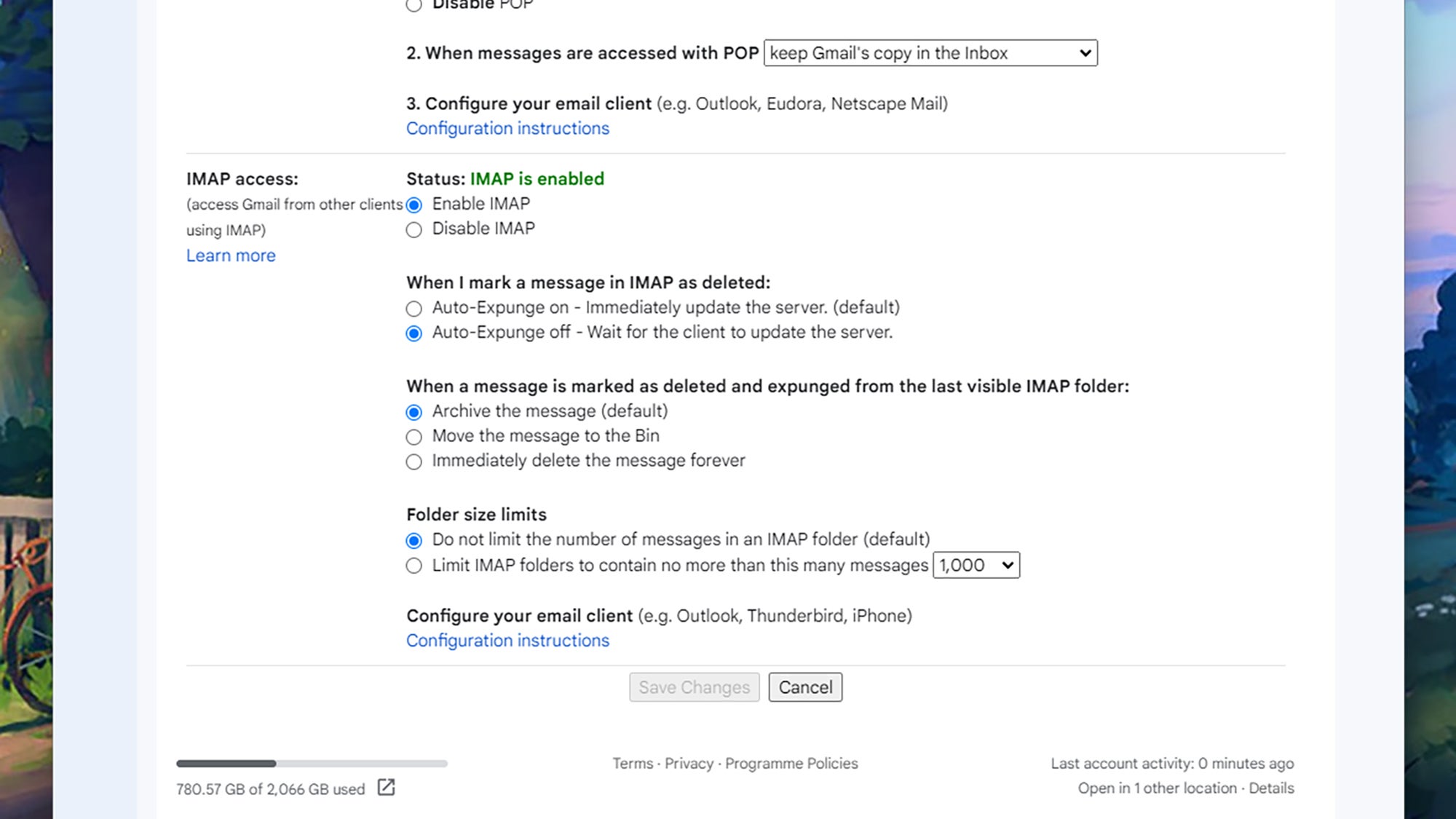
To enable this feature, you must first activate IMAP in your Gmail settings on the web:
– Click on the gear icon in the top right corner and select ‘See all settings.’
– Open the Forwarding and POP/IMAP tab, then click on ‘Enable IMAP.’
– Save your changes to confirm the activation.
In this section, you can adjust how synchronization between your local email app and Gmail is managed. One crucial setting is determining how deleted emails are handled—whether they are archived, moved to the Trash folder, or instantly deleted on the web version of Gmail.
Once IMAP is enabled, you can add your Gmail account to the email program on your computer. The process varies depending on the program, but adding a new account should be straightforward.
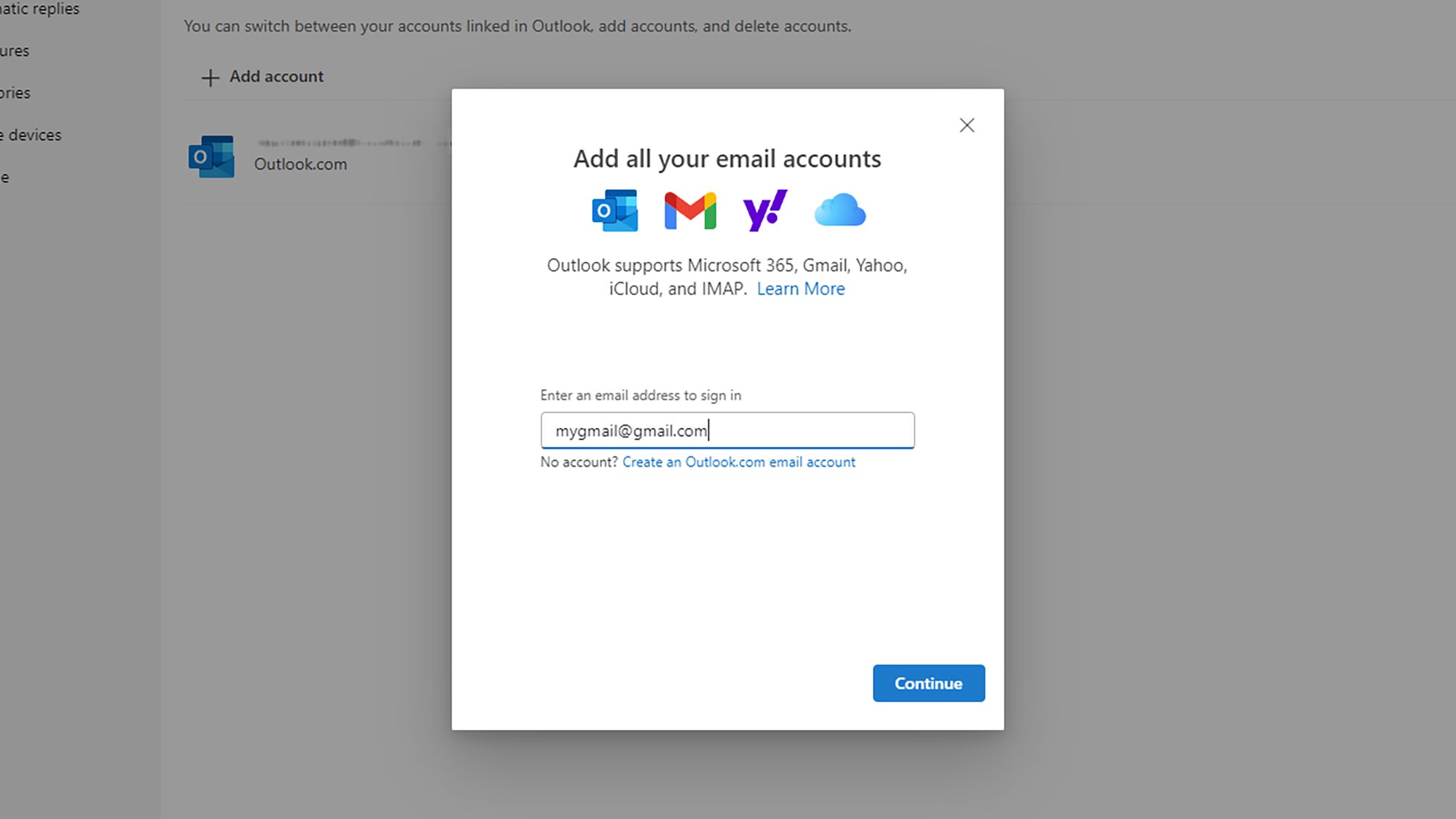
Most email apps simplify this process by requesting your Gmail address and username to establish the connection. There’s no need for extensive configuration—all you need to do is input your credentials.